Launch · Desktop app
beeWork
Your work hours, recorded as you work — no timesheet.
Clock in, start a session, and get on with your day. beeWork records your working day and syncs it quietly from the system tray.
- Windows desktop app
- Update check
- Runs in the tray
Use ← → or space to navigate · G for overview · F for fullscreen · N for notes
Opening frame in one sentence: beeWork records working hours as the day goes on, so staff never fill in a timesheet. It runs quietly in the tray and syncs in the background.
Scope
What the timesheet is for.
01
Timesheet created to calculate project cost for worker in office
02
Timesheet is created to calculate time per issue to be solved
Scope of beeWork, stated plainly: (1) a timesheet is created to calculate project cost for a worker in the office, and (2) a timesheet is created to calculate the time per issue to be solved. Read these two lines as written — everything the app records serves one of them.
The idea
One loop, from clock-in to clock-out.
beeWork turns a working day into a record — with almost no input from the user.
1Clock in
→
2Start session
→
3Work as usual
→
4Auto-sync
→
5Review summary
→
6Clock out
- Almost zero input — pick a client, a project and a task, then start.
- Capture happens in the background — logs sync while the session runs.
- Ends itself — clocking out on BeeWhere ends the session automatically.
The core narrative: one simple loop. Emphasise that steps 3 and 4 require nothing from the user — that's the whole value proposition versus a timesheet.
The product
Everything the app does.
⏱Working hours
Clock in, and the hours you work are added to the timesheet.
🏷Client & project tagging
Every session is filed against a client and project, with the task you were working on.
📋Work log
A running record of the applications and windows used, each marked synced or pending.
🔔Tray status
Lives in the Windows notification area — left-click to open, no window clutter.
🔄Update check
Checks for new versions automatically and notifies you. You choose when to download and install.
Capability map: keep it to five. Working hours, tagging, logs, tray, updates. These map directly onto the screens in the user manual.
Transparency
Users know what's recorded.
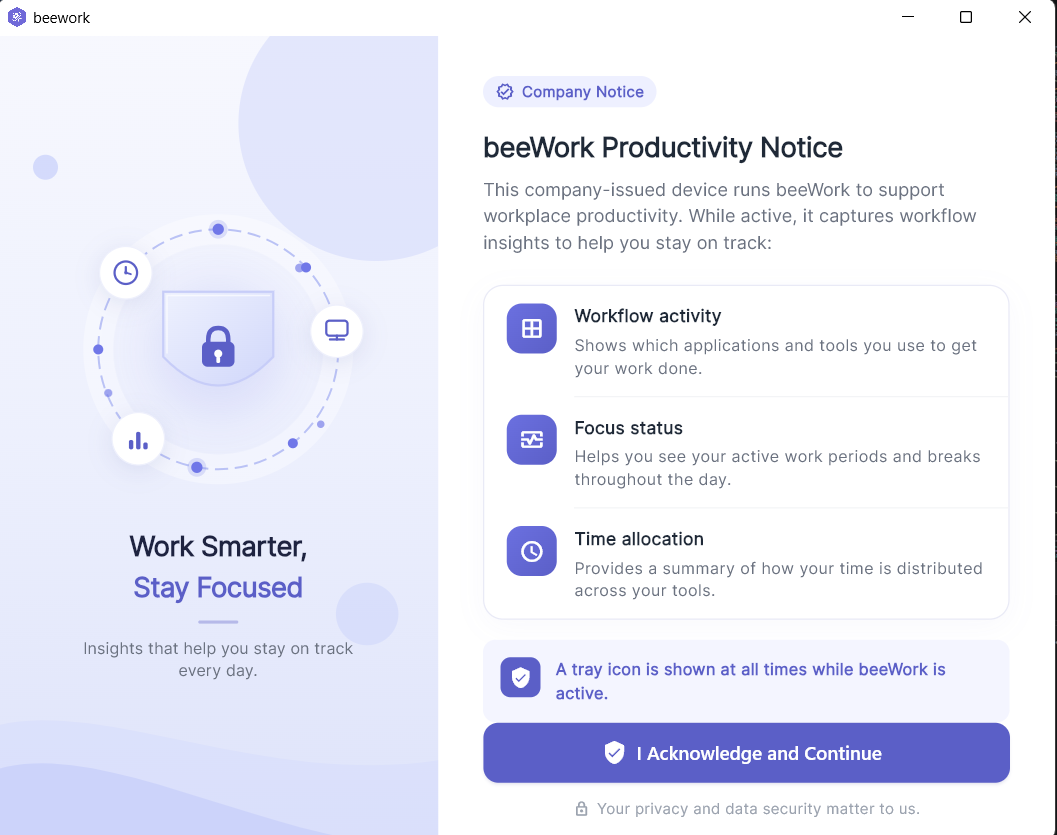
- On first launch, a company notice explains exactly what the app records.
- Workflow activity — the applications and tools used to get work done.
- Focus status — active work periods and breaks through the day.
- Time allocation — how time is distributed across tools.
Read the notice, then click "I Acknowledge and Continue" — shown once, never again.
Trust slide. Lead with transparency — the user is told upfront what is recorded and why. This is the slide to use if anyone raises privacy concerns.
Getting in
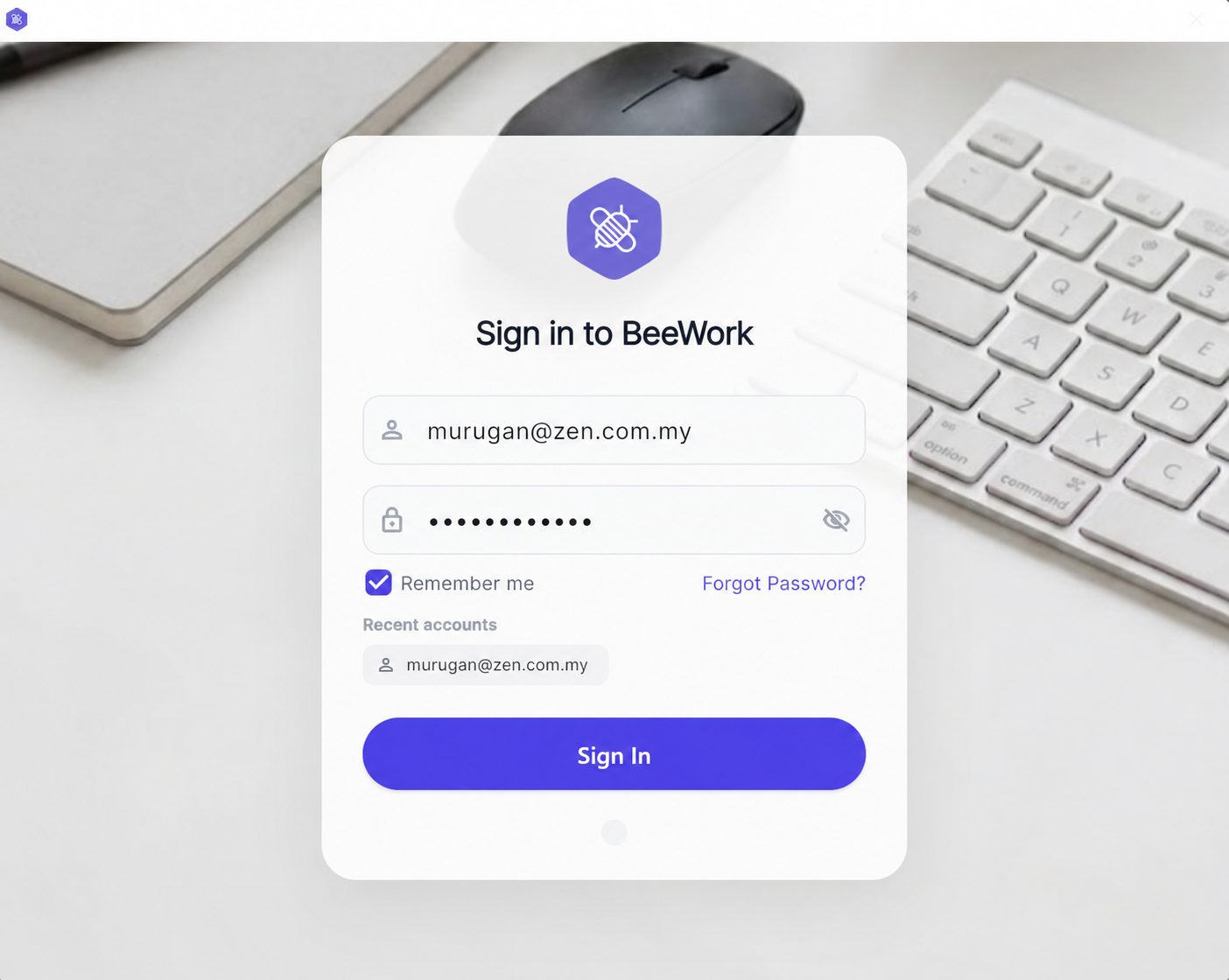
Sign in with a company account.
1Enter company email and password
2Tick "Remember me" to save credentials
3Click Sign In
Simple onboarding. Note that accounts are company-issued — no separate signup. "Remember me" saves re-typing for users on shared machines.
The daily flow
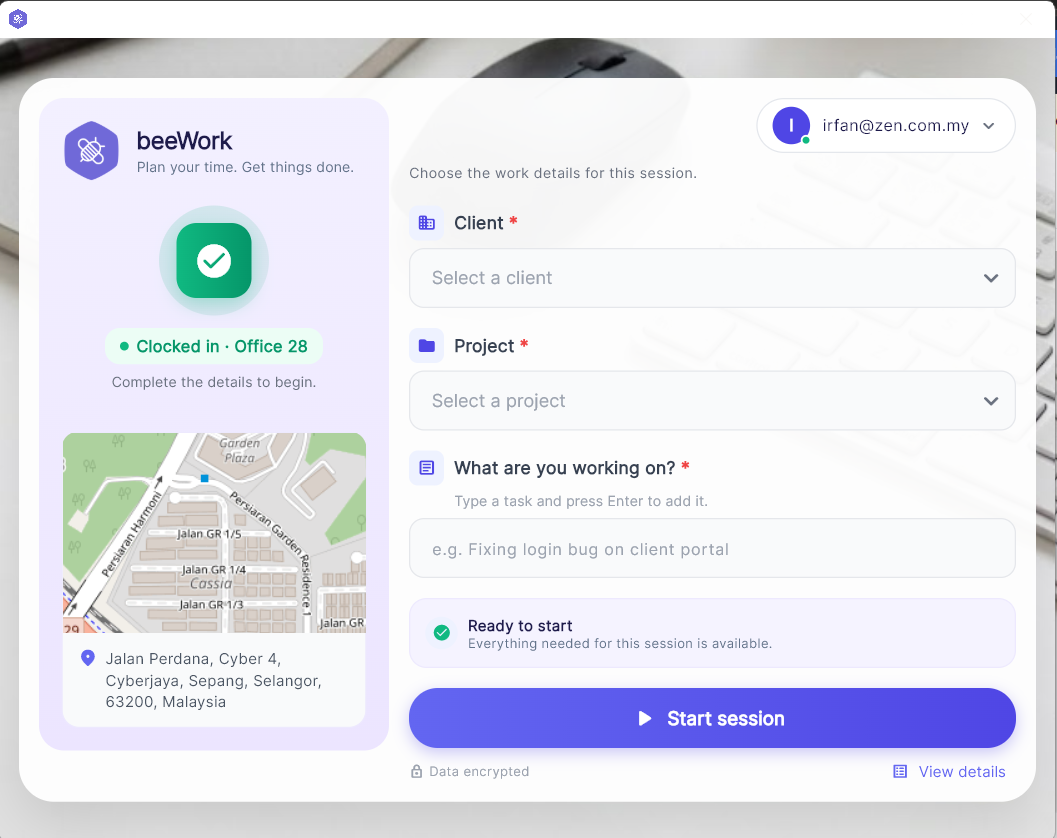
Start a session in five steps.
1Clock in for the day — BeeWhere mobile or the office face scanner (required)
2Select a client
3Select a project
4Type the task and press Enter
5Click Start session
Client and project are both required — and at least one task.
Walk the steps left to right. Stress the clock-in requirement — users who hit "Clock In Required" skipped step one. After starting, the window minimises to the tray.
Out of the way
Runs quietly in the tray.
- Left-click the tray icon to reopen the app.
- Right-click for Exit.
- No window clutter — the app never blocks the desktop.
This is the "it doesn't get in the way" slide. Non-intrusive by design — the tray icon doubles as the recording indicator.
Live status
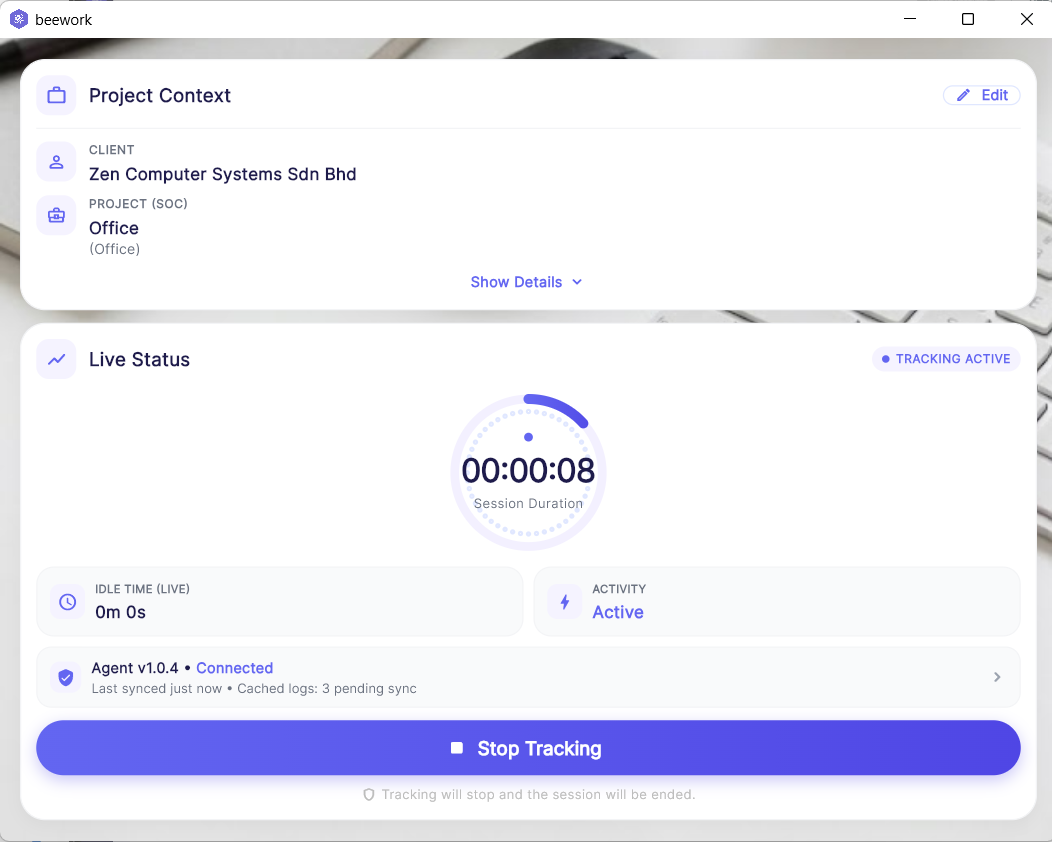
Work Session Assistant.
- A live elapsed clock for the current session.
- Whether logs are pending or synced.
The live status view. Useful for the demo — open from the tray and show the clock ticking and the sync state changing from pending to synced.
The record
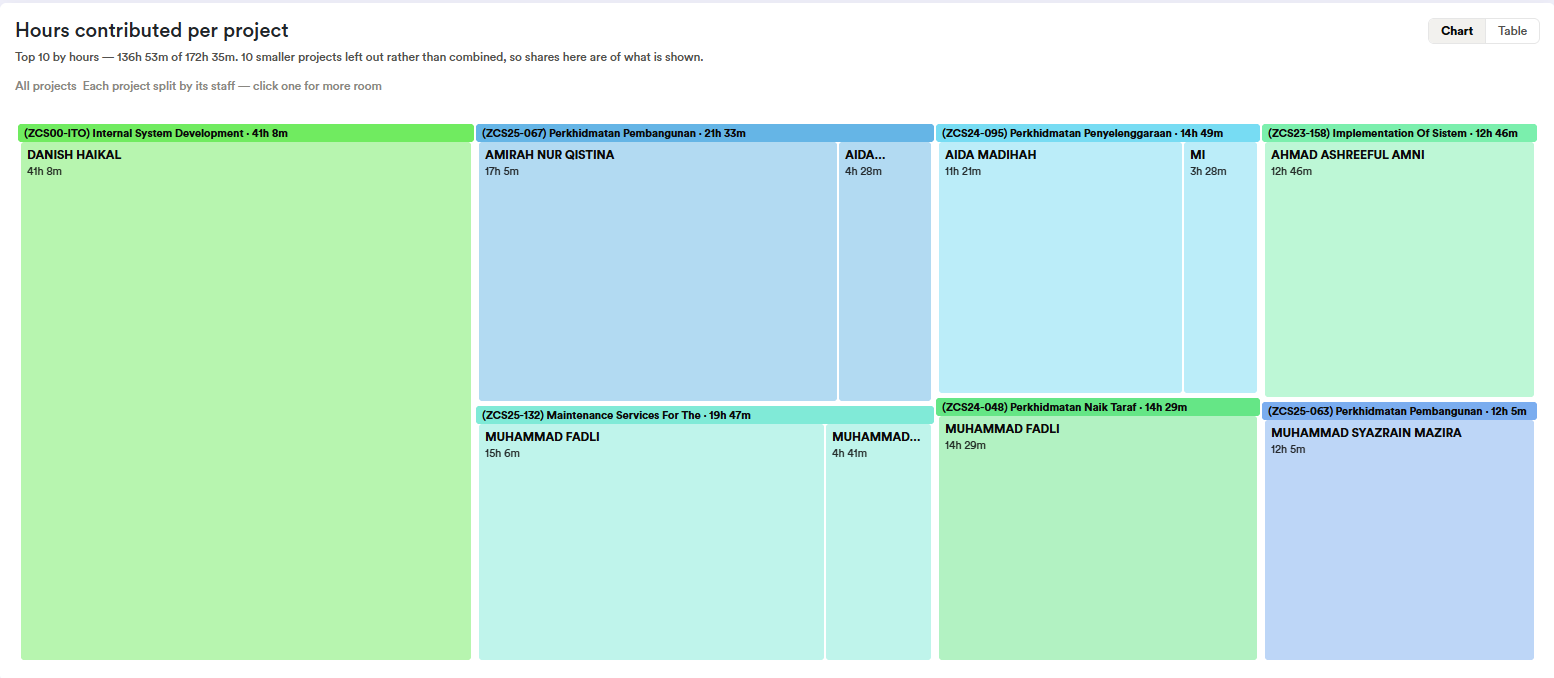
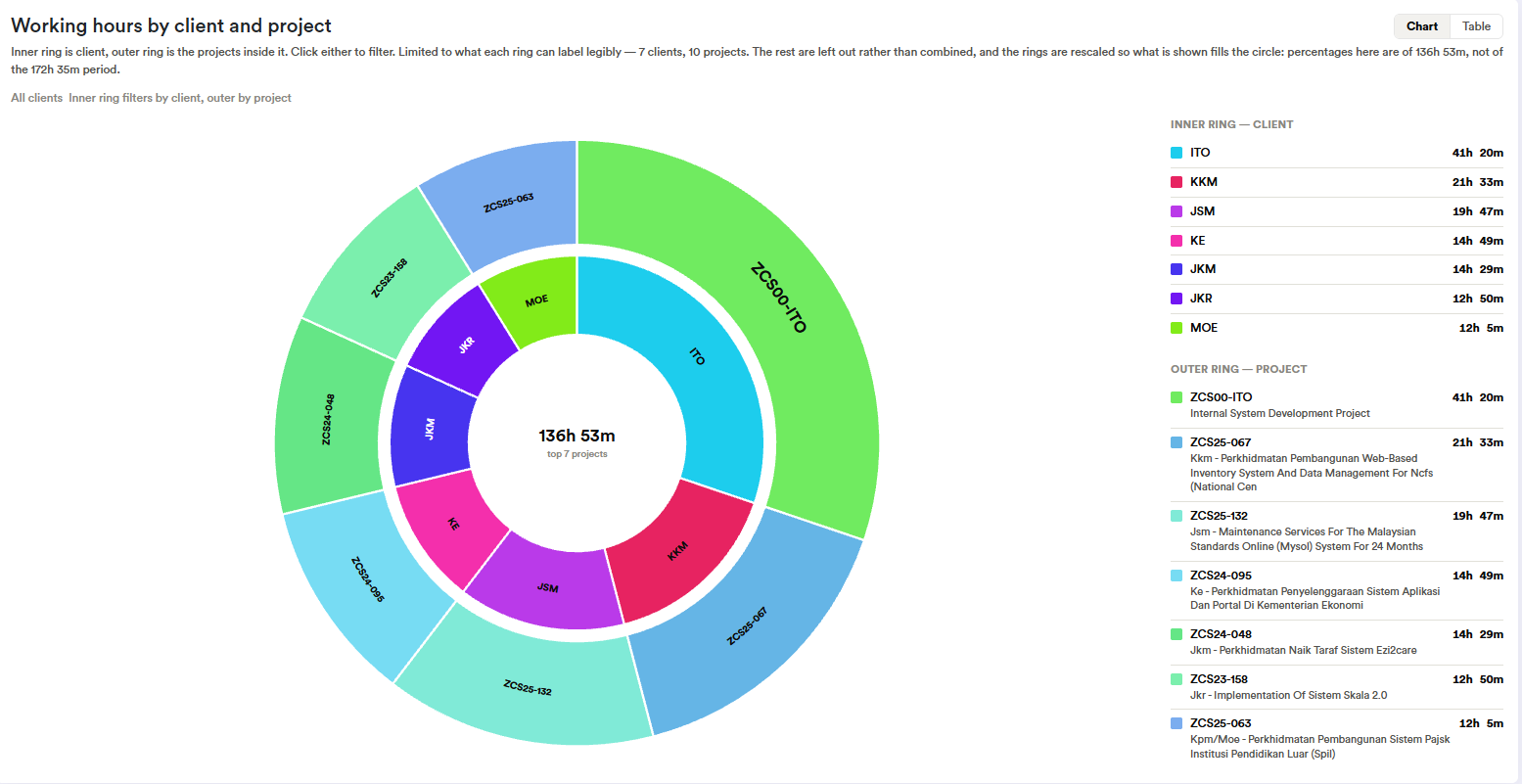
Hours by project and by client.
Two BeeSuite dashboard views side by side: hours contributed per project on the left, working hours by client and project on the right. This is where the recorded time ends up, replacing the timesheet.
Wrapping up
Ending a session — two ways.
🖥From the app
Open the app and click End session. A confirmation dialog appears before anything is finalised.
📱On BeeWhere
Clock out on the BeeWhere mobile app or at the office face scanner, and beeWork detects it and ends the session automatically.
When a session ends, the clock-out is recorded and any remaining work log entries are sent to the server.
Two ways out, and the second needs nothing from the user — clocking out on BeeWhere mobile or at the office face scanner closes the loop on its own. The pending counter always returns to zero.
Always current
Updates itself.
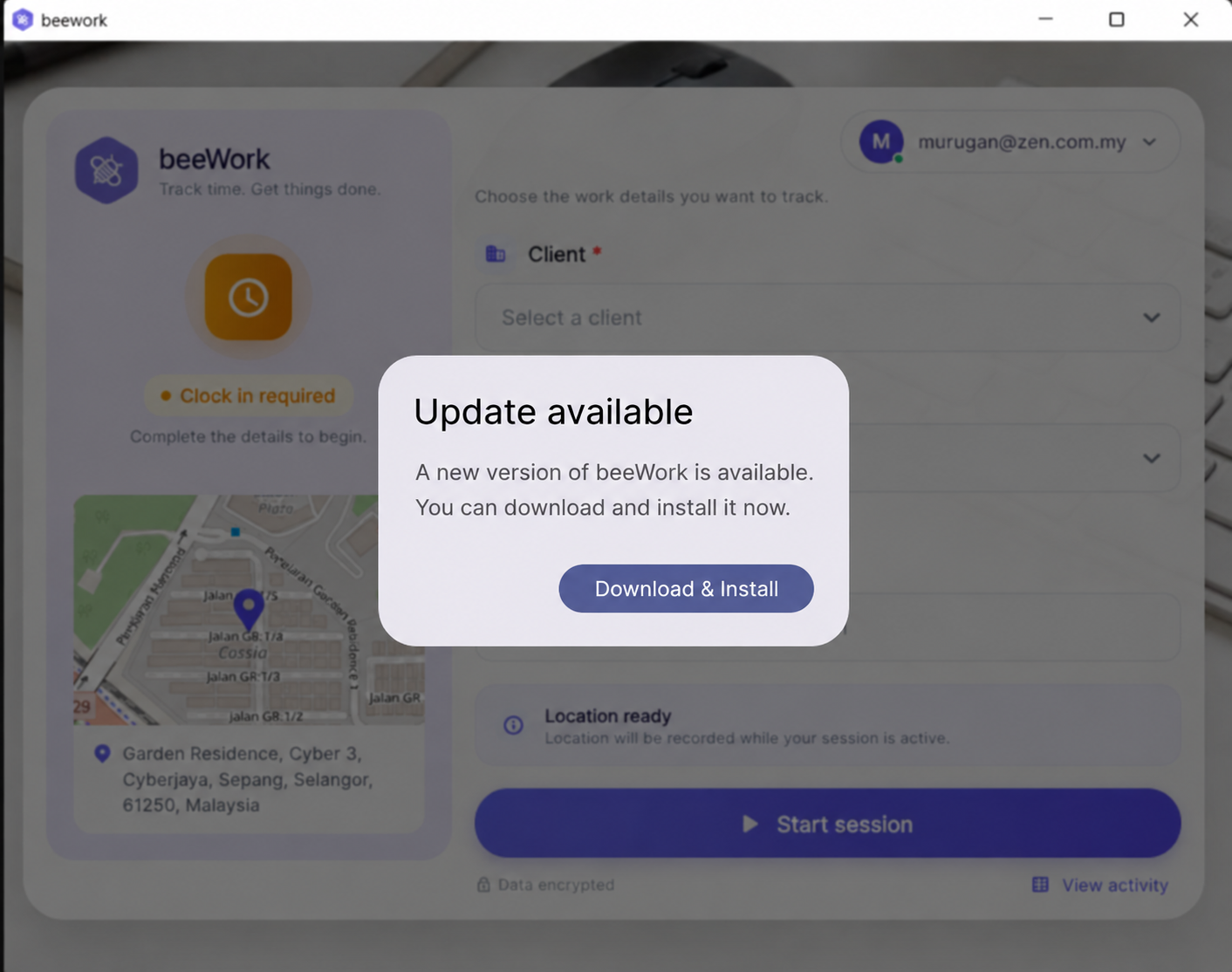
- beeWork checks for updates automatically.
- An "Update available" dialog appears when a new version ships.
- Click "Download & Install" — done.
The app checks for new versions in the background.
Get started
Up and running in a minute.
1Download
Grab the latest installer from the download page.
2Install
Run the setup and follow the prompts. beeWork starts in the system tray.
3Sign in
Log in with the company account, clock in, and start the first session.
Three-step onboarding. The download link reads the manifest, so it always points at the version the server is publishing.
beeWork · Zen Computer Systems
Thank you.
Questions about deployment, roll-out or the update server? Get in touch with the internal team.
https://work.beesuite.app/
Zen Computer Systems Sdn. Bhd. · beeWork Desktop
Close with the three destinations: the download page, the user manual, and the live site at work.beesuite.app — the same address staff can open any time to grab the installer.