1. Introduction
beeWork is a desktop app for recording your working hours. Sign in with your company account and start a session when you begin work. Your recorded hours are saved and synced automatically.
- Sign in with your company account to get started
- Start a session to record your working hours
- You can minimise beeWork while a session is running
2. First Launch
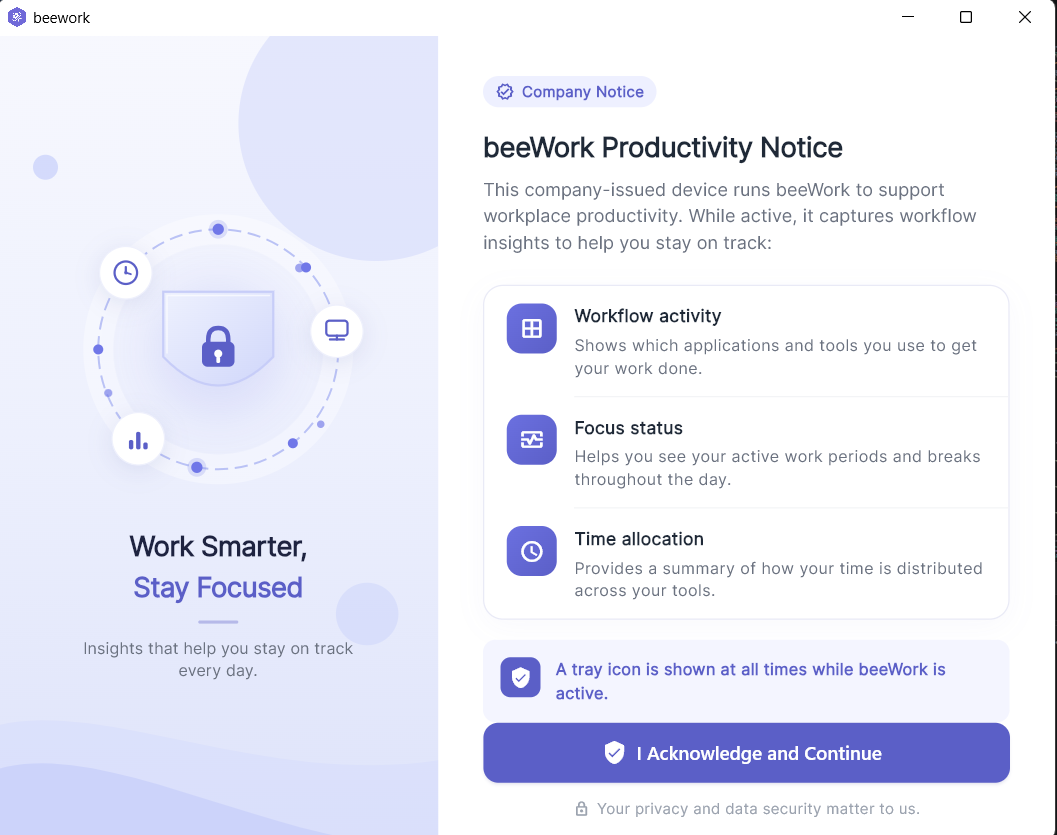
The first time you open beeWork, it shows a notice explaining how the app works during an active session. It covers:
- Workflow activity — the applications and tools you use to get your work done.
- Focus status — your active work periods and breaks throughout the day.
- Time allocation — how your time is distributed across your tools.
3. Sign In
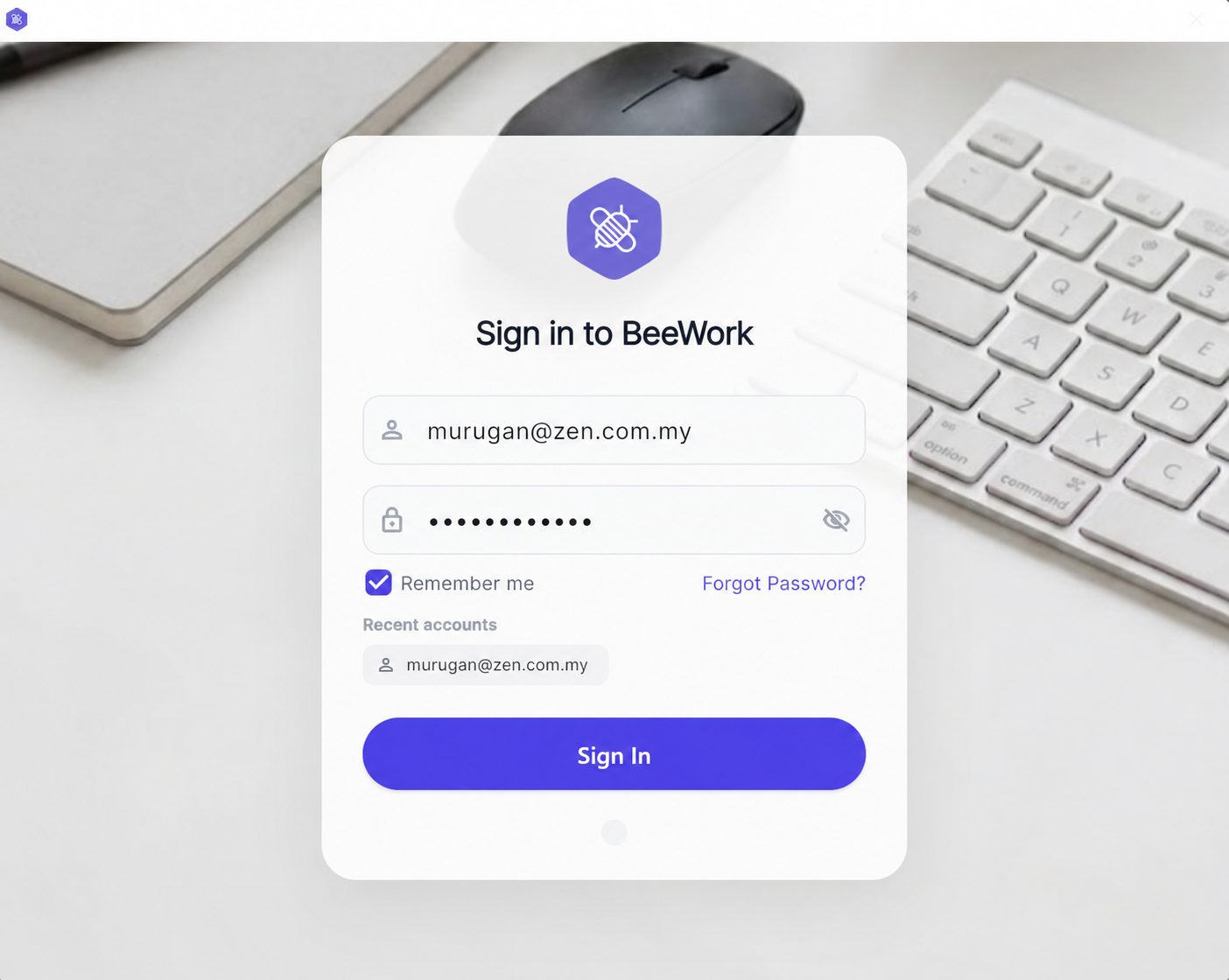
- 1Enter your company email and password.
- 2Tick "Remember me" to save your credentials.
- 3Click Sign In.
Previously used accounts are shown for one-tap autofill.
4. Start a Work Session
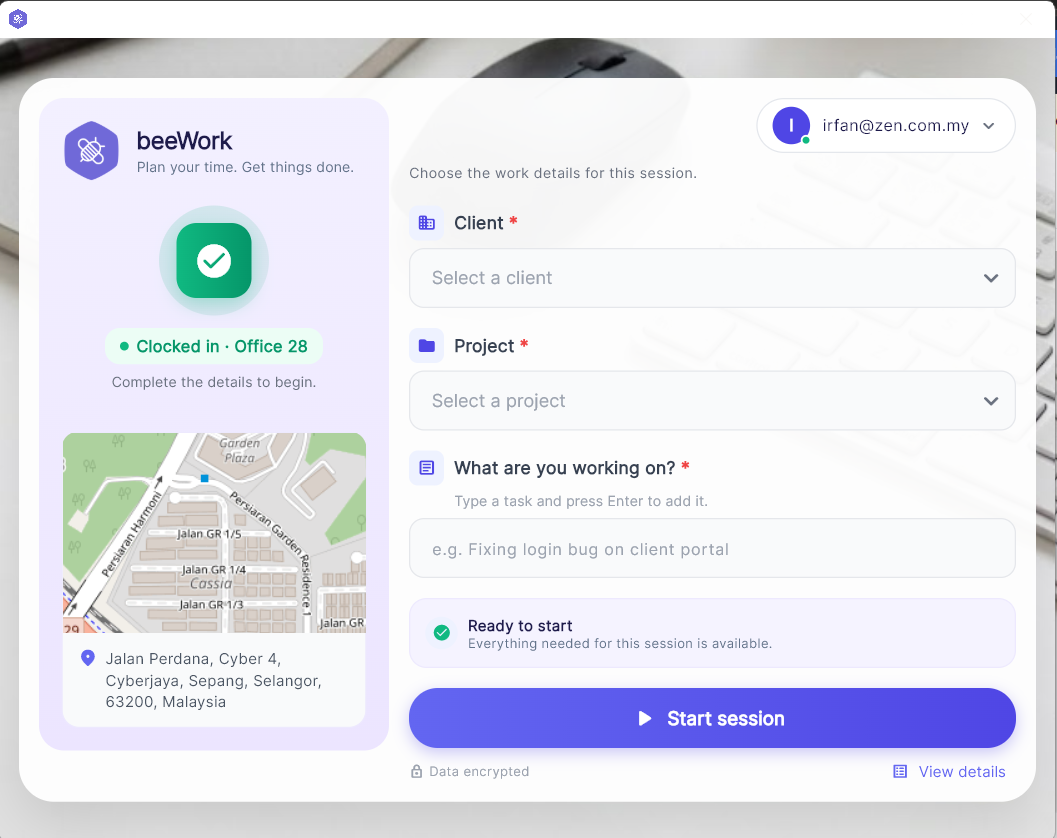
The main screen is where you set up your work session.
- 1Clock in first (required). You must already be clocked in for the day — from the BeeWhere mobile app or the office face scanner — before you can start a session.
- 2Client — select the client you're working for.
- 3Project — select the project (loads after you pick a client).
- 4What are you working on? — type a task and press Enter.
- 5Click Start session.
After you start, the window minimises to the system tray and a tray icon shows the status.
5. Tray Icon
While beeWork is running, a tray icon is always shown in the Windows notification area, so you can tell at a glance that the app is active.
- Left-click the icon to reopen the app window.
- Right-click the icon to open its menu.

6. Work Session Assistant
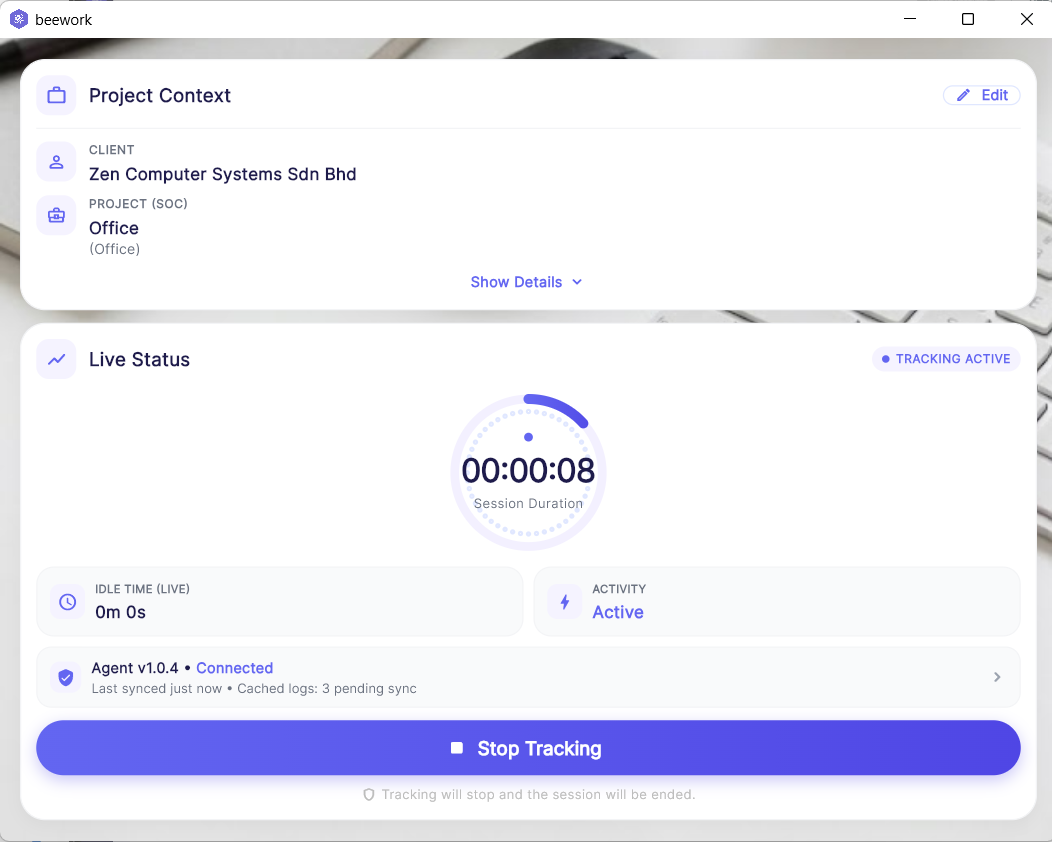
Opening the app from the tray shows the Work Session Assistant — an overview of your current desktop activity and sync status:
- Live elapsed clock for the current session.
- Whether logs are pending or synced.
7. Ending a Session
You can end a session two ways:
- 🖥️From the app: open the app and click End session (a confirmation dialog appears).
- 📱On BeeWhere: if you clock out on the BeeWhere mobile app or at the office face scanner, beeWork detects it automatically and ends the session for you.
8. Updates
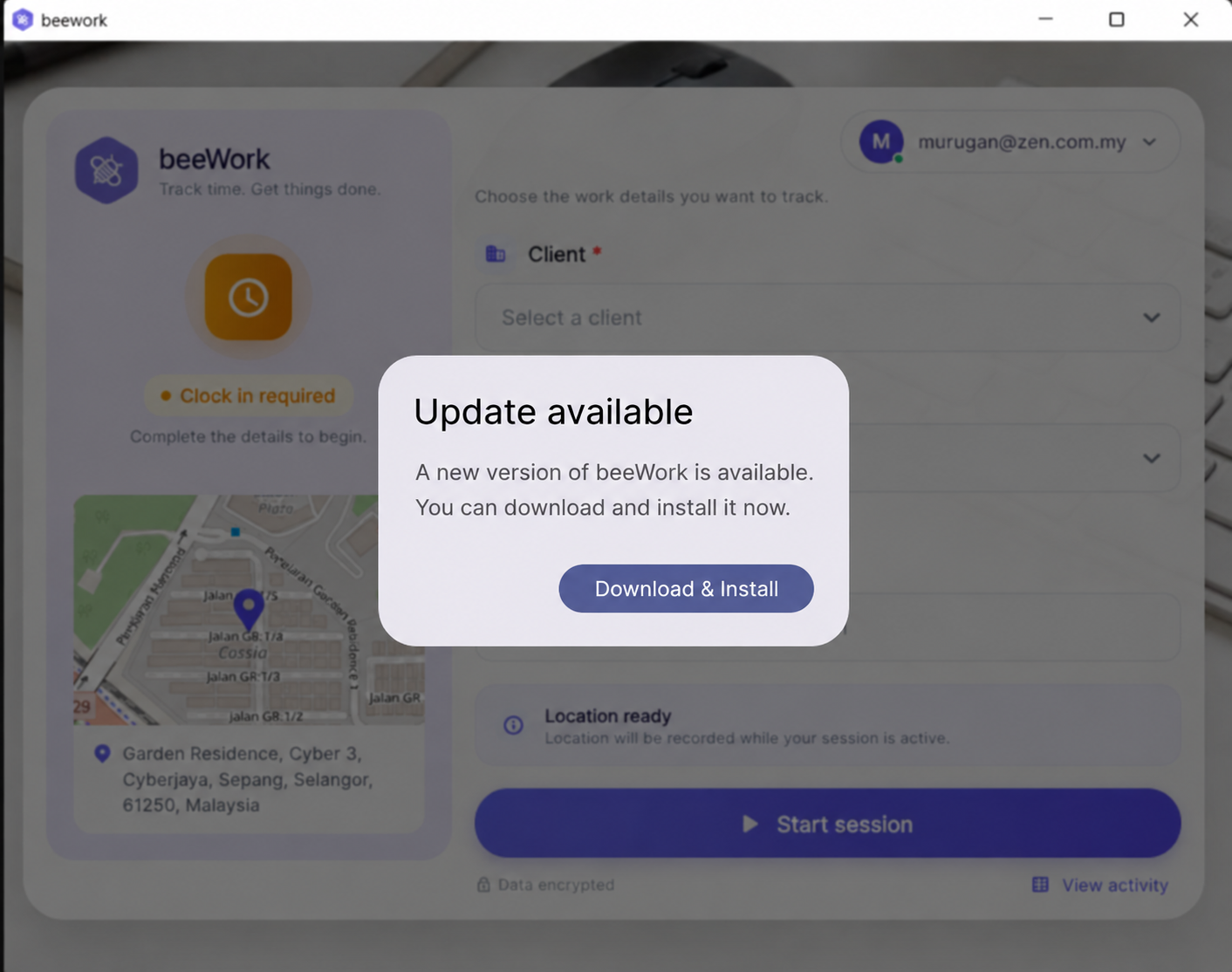
beeWork checks for updates automatically. When a new version is available, you'll see an "Update available" dialog.
- Click "Download & Install" to install the update.
9. Need Help?
Contact your internal team with any questions about this app, your data, or if you have problems logging in or syncing.